What Gemini Is (and Isn't)
Google Gemini is an AI assistant built on Google's infrastructure. It combines live web access through Google Search, deep Google Workspace integration (Gmail, Drive, Docs, Calendar), multimodal input and output (text, images, audio, video, documents), native image generation and editing, a large context window (up to 1M tokens on paid tiers, 32K on free), autonomous Deep Research, and code execution.
Not all of that is equally mature. This path focuses on the capabilities that are most practically useful today: real-time research, Google Workspace integration, multimodal analysis, and Deep Research. It will also teach you to evaluate Gemini's output honestly, because live web access can make responses feel more authoritative than they deserve.
Gemini is available in several tiers. The free tier uses Gemini 3 Flash and covers core functionality including web search, image generation, and limited Deep Research. Google AI Plus ($7.99/month) adds access to Gemini 3 Pro and 200GB storage. Google AI Pro ($19.99/month) upgrades to Gemini 3 Pro with 1,000 AI credits, a 1M-token context window, Workspace integration, and higher limits. Google AI Ultra ($249.99/month) gives the highest access limits, 25,000 AI credits, Deep Think (advanced reasoning), and exclusive features like Project Mariner. You do not need a paid tier to follow this learning path.
If the number of tiers and features feels like a lot to take in, that's because it is. We'll focus on what actually matters for daily use.
⚖️ Gemini Tiers at a Glance
Tier Features Price Free Gemini 3 Flash, basic features, 32K context window $0/month Google AI Plus Gemini 3 Pro, 200GB storage $7.99/month Google AI Pro Gemini 3 Pro, Workspace integration, 1M context window, 2TB storage $19.99/month Google AI Ultra Highest limits, Deep Think, Project Mariner, 30TB storage $249.99/month
Access Gemini at gemini.google.com or through the Gemini mobile app. If you use Google Workspace, Gemini also appears inside Docs, Sheets, and Gmail, but the standalone interface is where you'll do most of your learning here.
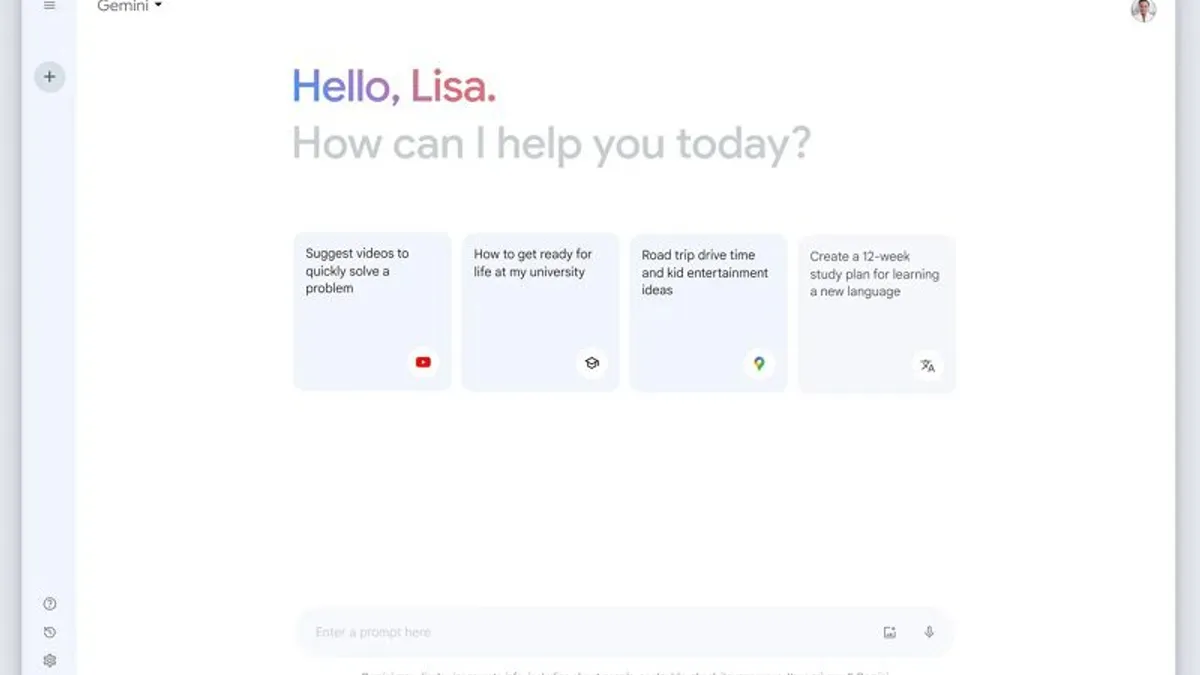
Get Started
Open gemini.google.com and sign in with your Google account. Type this prompt exactly:
What happened in the world of artificial intelligence in the past 48 hours? Give me the three most significant developments, with links to sources where I can read more.
Read the response carefully. Notice three things:
- Dates -- the response should reference events from the last day or two
- Sources -- Gemini should provide links or name specific publications
- Freshness -- most major AI assistants now have web search, but Gemini's is deeply integrated with Google Search, often giving it an edge on breadth and recency
If you got dated, sourced, recent information -- you've experienced one of Gemini's core strengths. Everything here builds on that foundation.
If the sources looked impressive but you weren't sure whether to trust them -- good instinct. That critical eye is exactly what this path develops.
Core Skill 1: Real-Time Research
When we first used Gemini for research, we took its cited answers at face value. It took a few embarrassing moments to learn that citations don't automatically mean accuracy.
The key principle: give Gemini a time window. Vague prompts get generic overviews from training data. Specific time-bounded prompts force live search:
What electric vehicle models were announced or released in the past 30 days? Include pricing, availability dates, and how they compare to existing models in the same price range.
For deeper tasks, try Deep Research. This mode lets Gemini autonomously browse hundreds of websites and produce a cited multi-page report. Select Deep Research before submitting your prompt. Gemini creates a research plan, shows you what it will investigate, then executes and compiles a structured report with citations. Available on free (using Flash, lower limits) and paid tiers.
When real-time research works well
Last verified: March 2026
- Breaking news -- events from the past hours or days
- Market and financial data -- current prices, trends, recent earnings
- Product and technology launches -- what just shipped or was announced
- Regulatory changes -- new laws, guidelines, or government actions
- Deep dives via Deep Research -- comprehensive multi-source reports with citations
Exercise: Deep Research Walkthrough
If you have not tried Deep Research yet, this is worth 10 minutes of your time. The experience feels genuinely different from a normal chat — more like dispatching a research assistant than asking a question.
- Choose a research question that requires multiple sources. We suggest: "What are the pros and cons of four-day work weeks based on real company data?" — but pick something you actually care about.
- Activate Deep Research mode in Gemini (select it before submitting your prompt).
- Review the research plan Gemini proposes. Does it cover what you would want a thorough report to address?
- Let it run — this may take 1–2 minutes. That wait is the model browsing dozens of sources on your behalf.
- When the report arrives, count the unique sources cited. We typically see 15–30 for a well-scoped question.
- Click through to at least 3 sources and verify they actually say what Gemini claims. How many check out?
- Identify at least one gap — something a thorough report on this topic should cover but did not.
Reflection: How does this compare to doing the research manually? In our experience, Deep Research compresses roughly 2–3 hours of desk research into minutes — but the gaps it leaves are the parts that matter most for your specific context. The tool handles breadth; you supply judgement.
📈 Gemini Web Search Reliability by Topic
Source: AI Tutorium internal testing, March 2026
When it falls short
Last verified: March 2026
- Niche or low-coverage topics -- if few websites cover it, Gemini can't find it
- Numerical precision -- statistics and figures should always be verified against primary sources
- Paywalled content -- Gemini can see articles exist but often can't access full text
- Recency illusion -- may present older information as "recent" if it can't find new sources
Knowledge Check
A colleague asks you to use Gemini to find "the average salary for data engineers." You type the prompt without any time window or location. What's the most likely problem with the response?
Exercise: Fact-Check a Claim
Scenario: A colleague tells you that the EU just passed new regulations on AI in hiring practices.
Task: Use Gemini to verify this:
Has the European Union passed any new regulations specifically about AI use in hiring or recruitment in the past 60 days? Provide the regulation name, date passed, key requirements, and link to the official source.
What to observe: Does Gemini find a real regulation, or give a vague answer about "proposed" legislation? Does it provide a verifiable source? If it can't find the claim, does it say so or fabricate something plausible?
Exercise: Build a Briefing
Scenario: You have a meeting tomorrow about your company's expansion into the Canadian market.
Task: Prompt Gemini:
I need a 5-minute briefing on the Canadian economy. Cover: GDP growth in the most recent quarter, current interest rates, CAD exchange rate trend over 3 months, and major economic policy changes in the past 60 days. Format as bullet points I can speak from.
Then follow up:
Now add the top 3 economic risks analysts are raising about Canada right now.
What to observe: Verify the GDP figure, interest rate, and exchange rate against one official source (Bank of Canada, Statistics Canada). How many were correct?
Core Skill 2: Google Workspace Integration
Instead of copying content into a chat window, you can point Gemini at your actual files, emails, and calendar.
Go to Settings > Connected Apps and enable the Google services you want: Gmail, Drive, Docs, Calendar, and others. Each Connected App asks for specific permissions. Maps and YouTube are built into Gemini natively -- just ask naturally without enabling anything.
Last verified: March 2026 -- Settings location may change in future updates
Privacy note: Enabling Connected Apps means Gemini can read your data in those services. You can change these settings at any time.
What integration lets you do
Gmail: "Find all emails from Sarah in the past week and summarise what she needs from me." Gemini searches your actual inbox.
Google Drive: "Look at the Q3 sales report in my Drive and tell me which product category grew fastest." Gemini reads the document.
Maps: "What are the three highest-rated Italian restaurants within 15 minutes of my office?" Built-in, no setup required.
YouTube: "Find a YouTube tutorial on pivot tables in Google Sheets under 10 minutes." Works natively.
Why does Gemini require you to explicitly enable Connected Apps for Gmail and Drive, but Maps and YouTube work immediately without setup?
Maps and YouTube are public-facing Google services — the data Gemini accesses there (directions, restaurant ratings, video content) is already publicly available. Gmail and Drive contain your private data, so Gemini requires explicit permission before it can read your emails or files. This is a deliberate privacy boundary, not a technical limitation.
If you don't use Google Workspace
Skip to Core Skill 3. Gemini's research and multimodal capabilities work regardless of your ecosystem.
Exercise: Email Triage
Prerequisite: Gmail Connected App enabled.
Task: Open Gemini and prompt:
Look through my Gmail inbox from the past 3 days. Categorise into: (1) needs a response today, (2) informational only, (3) can wait. For group 1, draft a one-sentence summary of what each email needs.
What to observe: How accurately did Gemini categorise urgency? Did it miss anything important or flag non-urgent items?
Exercise: Cross-Service Synthesis
Prerequisite: Gmail and Drive Connected Apps enabled.
Task: Prompt Gemini about a project spanning your email and documents:
Search my Gmail and Google Drive for anything related to [your project name]. Summarise: what decisions have been made, what's pending, and what files are most relevant.
What to observe: How well did Gemini connect information across services? Did it find files you'd forgotten about?
Core Skill 3: Multimodal Input and Output
Gemini can process and generate multiple content types in the same conversation.
What you can send Gemini
Last verified: March 2026
- Images -- photos, screenshots, charts, diagrams, handwritten notes
- PDFs and documents -- upload directly or reference files in Drive
- Audio -- up to 10 min (free) or 3 hours (paid)
- Video -- up to 5 min (free) or 1 hour / 2GB (paid)
- Links -- paste a URL for Gemini to read and analyse
- Multiple inputs at once -- image + link + text in the same message
What Gemini can generate
Last verified: March 2026
- Images -- create images from text descriptions. Available free and paid.
- Image edits -- upload an image and ask Gemini to modify it: change backgrounds, remove objects, adjust styles. Describe changes in plain language.
- Text and code -- standard generation, analysis, and execution.
Image generation has content policies that restrict certain output. If declined, try rephrasing.
Knowledge Check
Your manager sends you a blurry photo of a whiteboard from last week's strategy meeting and asks you to "get Gemini to pull out the action items." The handwriting is a mix of neat print and fast cursive. What should you expect?
What works well
Last verified: March 2026
- Charts and graphs -- reads axes, labels, data points, and trends accurately
- Screenshots -- useful for "what does this error mean?" or UI questions
- Photos of documents -- receipts, business cards, printed text, legible handwriting
- Audio/video -- transcription, summarisation, Q&A on meeting recordings and lectures
📈 Gemini Multimodal Accuracy by Input Type
Source: AI Tutorium internal testing, March 2026
What doesn't work reliably
Last verified: March 2026
- Very small text in images -- fine print, dense spreadsheets, low resolution
- Very long PDFs -- may summarise rather than read thoroughly
- Messy handwriting -- clear handwriting works, cursive often fails
- Image generation edge cases -- content policies may block legitimate requests
Exercise: Visual Data Extraction
Task: Find any chart or graph. Screenshot it and upload to Gemini:
Analyse this chart. What data does it show? What is the main trend? What is the most surprising data point? Then search for current information to tell me whether this trend has continued or reversed.
What to observe: This combines image analysis and web access. Did it read the chart accurately? Did the follow-up research add useful context?
Exercise: Photo-to-Action
Task: Take a photo of any informational content -- a poster, book page, product label, whiteboard. Upload and prompt:
Read everything in this image. Summarise the key information, then give me three follow-up questions I should research based on what's here.
What to observe: How much text did Gemini capture accurately? Were the follow-up questions genuinely useful?
Core Skill 4: Evaluating Gemini's Output
If you've ever shared a Gemini response without checking the sources first, you're not alone -- the citations make it feel trustworthy. Most people hit this exact wall.
Live web access creates a trust problem. When Gemini cites "a recent article" or gives "today's data," it feels more authoritative. That feeling is dangerous if you don't verify.
A framework for evaluation
- Did it provide a source? Can you click through and verify the claim appears in that source?
- Is the source credible? A government database and a random blog are not equally reliable. Gemini doesn't weight by credibility -- that's your job.
- Is it actually current? Gemini sometimes presents old information as "recent." Check dates. If none given, ask: "What are the specific dates of the sources you used?"
Common failure patterns
- Fabricated sources -- plausible-sounding article titles that don't exist. Always click the link.
- Mixing old and new -- starts with recent data but fills gaps from older training data without marking the transition
- Shallow synthesis -- lists multiple sources but draws content from only one
- Won't say "I don't know" -- pivots to related information rather than admitting gaps
Why is Gemini's "mixing old and new" failure pattern more dangerous than a completely wrong answer?
A completely wrong answer is often obviously wrong — you notice it and discard it. But when Gemini starts with genuinely current data and then silently fills gaps from older training data, the response reads as entirely fresh and well-sourced. You're less likely to question the parts that are actually outdated because the accurate parts earned your trust. This is why the verification checklist asks you to check dates on every claim, not just the ones that "feel" wrong.
Exercise: Trust But Verify
Task: Ask Gemini about your own professional domain:
What are the most significant changes in [your field] in the past 30 days? Provide specific developments with dates and sources.
What to observe: You know this domain. How many claims check out? How many are wrong, misleading, or outdated? The accuracy here is roughly what you should expect when asking about domains you don't know.
Exercise: Source Audit
Task: Ask Gemini to research something you're curious about:
Give me a research summary on [topic] with at least 5 specific sources. Include publication name, date, and direct link for each.
Now check each source. Open every link. Does it work? Does it say what Gemini claimed? Is the date accurate? Your hit rate is your personal baseline for trust.
Challenge Exercises
These combine multiple skills and simulate realistic work scenarios.
Challenge 1: The Morning Briefing System
Task: Design a 3-prompt morning sequence that:
- Summarises your email and calendar (if using integration) or top 5 industry news stories
- Identifies the one thing that most affects a specific project you're working on
- Drafts a short message to a colleague about that thing
Success criteria: You could use this sequence tomorrow morning and it would save you time.
Challenge 2: Deep Research Report
Task: Write a one-page brief on whether your company should adopt a new technology:
- Use Deep Research mode for a comprehensive analysis of adoption, benefits, risks, and competitive landscape
- Review and adjust the research plan before Gemini executes
- Verify at least three cited sources manually
- Synthesise findings into a one-page brief with a clear recommendation
- Edit the brief yourself, correcting errors and adding your judgement
Success criteria: Every factual claim is verified. Your judgement is visible, not just Gemini's.
Challenge 3: Multimodal Project Update
Task:
- Upload a screenshot of project data (chart, spreadsheet, dashboard)
- Describe the project context and what's happened since the last update
- Ask Gemini to combine visual data and your description into a structured update: progress, metrics, risks, next steps
- Ask Gemini to research whether external developments in the past week affect this project
Success criteria: The update contains information no single source could have produced alone.
Challenge 4: Know When to Walk Away
Task: Send the same prompt to Gemini and another AI assistant:
I run a small marketing agency. A client bakery wants to expand to online ordering. Write a detailed 90-day launch plan covering technology selection, marketing, logistics, and budget. Be specific -- tool recommendations, estimated costs, week-by-week timeline.
Compare on: specificity (real tools and pricing?), currency (up-to-date?), structure (logical?), depth (edge cases addressed?).
Reflection: Which assistant won on which dimension? What does that tell you about when to reach for Gemini?
Quick Reference
Prompting Patterns That Work
- Time-bounded research: "In the past [timeframe], what has happened with [topic]?"
- Source-demanding: "Provide sources with dates and links for each claim."
- Comparison: "Compare [A] and [B] using data from the past [timeframe]."
- Multimodal: Upload image + "Analyse this and connect to current developments in [topic]."
- Google integration: "Search my [Gmail/Drive/Calendar] for [query] and summarise."
- Deep Research: Switch to Deep Research mode for comprehensive multi-source analysis.
Gemini's Strengths
Last verified: March 2026
- Live web access deeply integrated with Google Search
- Google Workspace integration via Connected Apps
- Multimodal input and output (text, images, audio, video, PDFs)
- Native image generation and editing
- Deep Research for autonomous cited reports
- Large context window (1M tokens on paid tiers, 32K on free)
- Audio/video analysis (up to 3 hrs audio, 1 hr video on paid tiers)
Gemini's Limitations
Last verified: March 2026
- May fabricate sources or present old data as current
- Cannot access paywalled content
- Google integration requires enabling Connected Apps and granting permissions
- Long document analysis can be shallow
- Free tier has lower limits; AI credit system on paid tiers can be exhausted with heavy use
- Image generation has content policies that may block some requests
- Deep Think (advanced reasoning) limited to AI Ultra subscribers
Verification Checklist
- Does the response include specific dates?
- Are sources linked and clickable?
- Do the links actually work?
- Does the source say what Gemini claims it says?
- Is the information genuinely recent, or relabelled old data?
You now have the tools to use Gemini's speed without sacrificing accuracy. Trust your verification instincts -- they'll get sharper with every search.
Practice Project
You know what Gemini can do. Now let's find out where it actually saves you time — in the tools you already use every day.
Workspace AI Audit
Time: 45-60 minutes
What you'll build: A practical audit of 5 places in your Google Workspace where Gemini can save you real time — each one set up, tested, and documented with a clear before/after comparison.
Why this matters: Gemini's deepest advantage is that it lives inside the tools you already use. But most people either ignore it or try it once and forget about it. A systematic audit — looking at where you actually spend time in Gmail, Docs, Sheets, and Drive — reveals the specific spots where Gemini earns its keep. We've found that people typically discover 2-3 genuine time-savers and 2-3 things that look useful but aren't worth the effort.
Steps
- Map your weekly Google Workspace usage. Spend 10 minutes listing what you actually do in Google apps each week. Be specific: "Write 4-5 client emails in Gmail," "Create meeting notes docs after 3 weekly syncs," "Update the team tracker spreadsheet every Friday." Pick the 5 activities where you spend the most time or feel the most friction. These are your audit targets.
- Test Gemini on each activity. For each of your 5 targets, use Gemini directly within the app. In Gmail, try "Help me write" for a real email you need to send. In Docs, use the Gemini sidebar to summarise a real document or draft a section. In Sheets, ask Gemini to create a formula or analyse a data range. In Drive, use Gemini to search across your files with a natural language question. Time yourself doing the task the old way versus with Gemini — actual minutes, not estimates.
- Score each integration honestly. For each of the 5 activities, note: how much time Gemini saved (in minutes), the quality of the output (did you use it as-is, edit heavily, or discard?), and whether you'd use it again next week. Be honest — some will be clear wins, and some won't be worth the context-switching cost. That's valuable data too.
- Set up your keepers. For the 2-3 integrations that genuinely saved time, make them part of your routine. Enable Gemini in those specific apps if you haven't already (Settings → Connected Apps in Gemini, or the Gemini icon within each app). Write a one-sentence reminder for each: what to use it for, and the prompt pattern that worked best.
Deliverable: A simple audit table with 5 rows — one per activity — showing: the task, which Google app, time saved (minutes), quality rating (1-5), and your verdict (keep / skip / revisit later).
Stretch goal: Run a Deep Research query on a topic relevant to your work and compare the output to research you'd do manually. Document whether the 3-5 minutes of waiting is worth the depth of the report.
Reflection: Which integration surprised you — the one you expected to love but didn't, or the one you nearly skipped that turned out to be genuinely useful? That gap between expectation and reality is exactly why audits matter more than assumptions.
What you've built isn't just a list of features — it's a tested map of where AI actually fits into your workday. Keep it somewhere visible. The integrations that scored well today are the ones that'll compound into hours saved over the next month.